
1. Nous allons d’abord installer l’application Downloader.
Cette application vous permettra de télécharger IPTV Smarter sur FireStick (les téléchargements par navigateur n’étant pas autorisés).
Vous pouvez également consulter notre guide détaillé pour télécharger des applications sur FireStick avec Downloader.
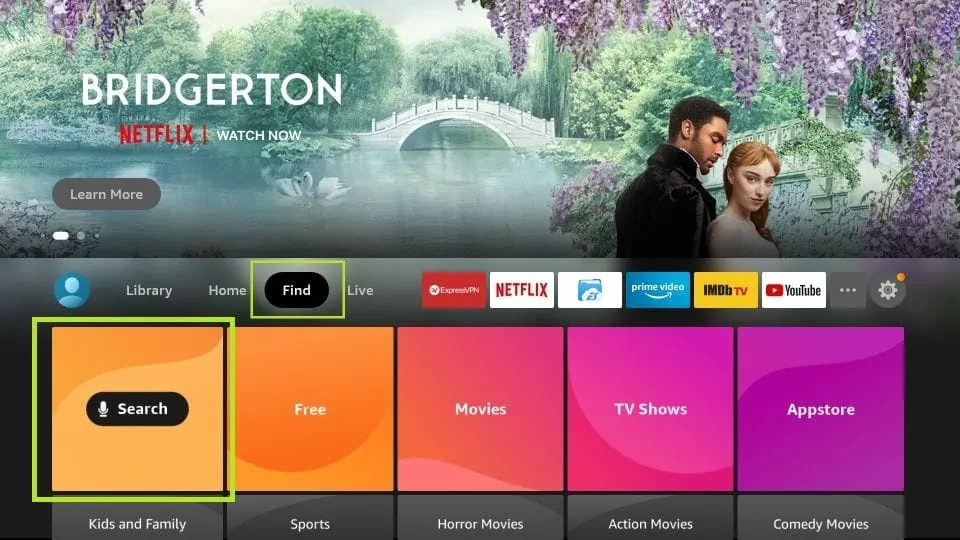
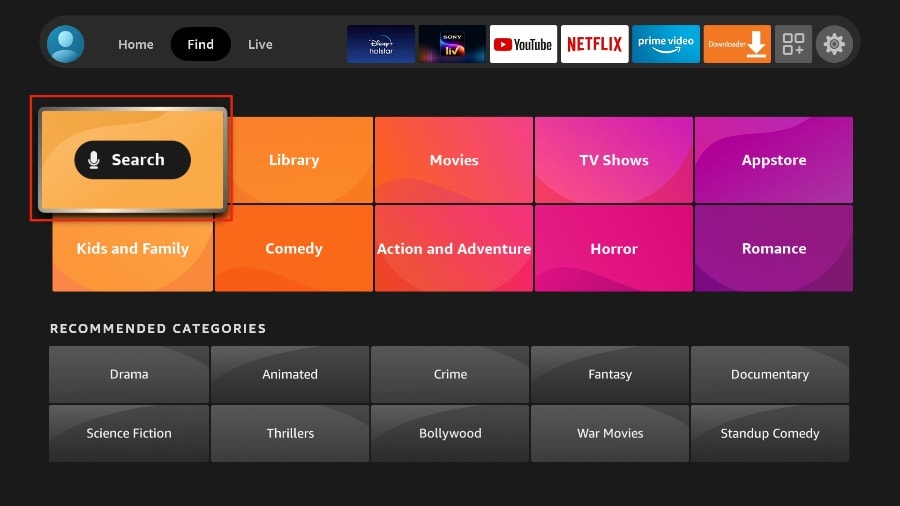
2. Cliquez sur « Rechercher » sur l’écran d’accueil de FireStick.
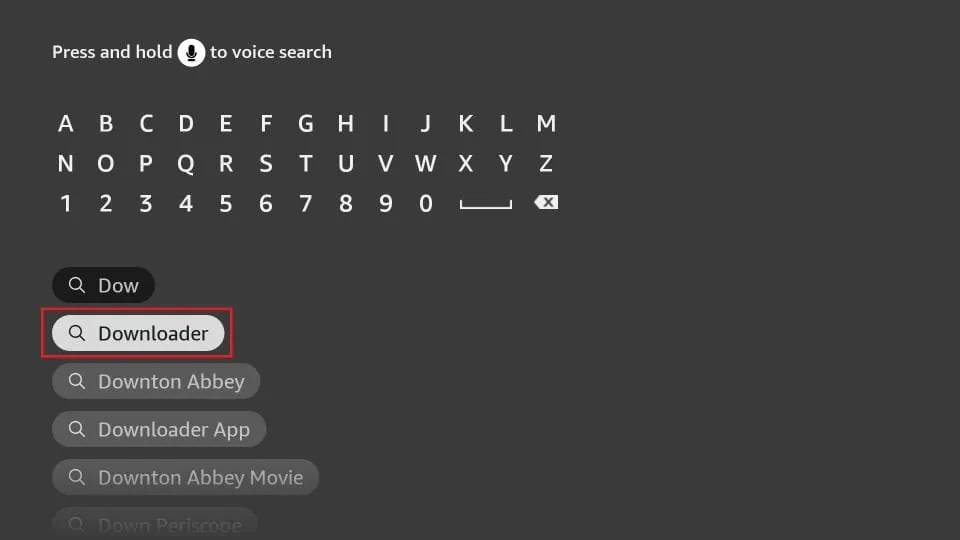
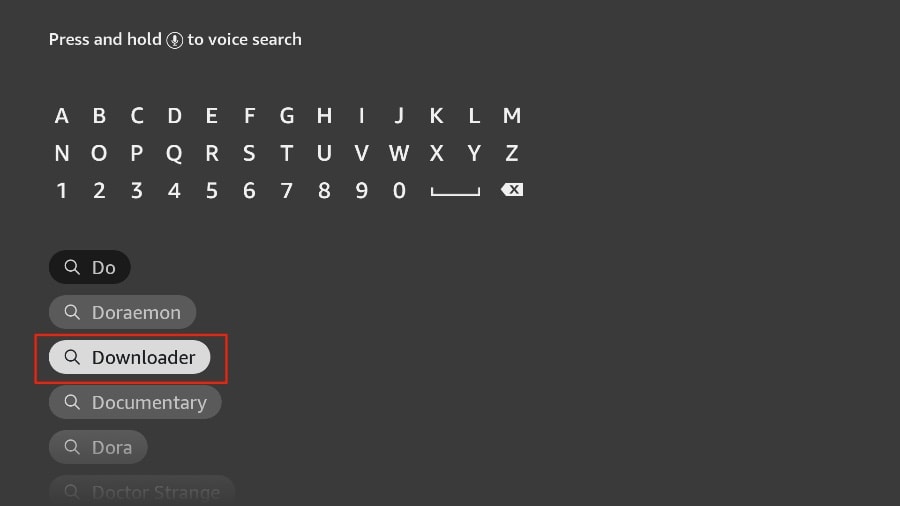
3. Saisissez le nom de l’application (Downloader).
Cliquez sur « Downloader » lorsqu’elle apparaît dans les résultats de recherche.
Choisissez l’icône « Downloader » sur l’écran suivant, puis téléchargez et installez l’application.
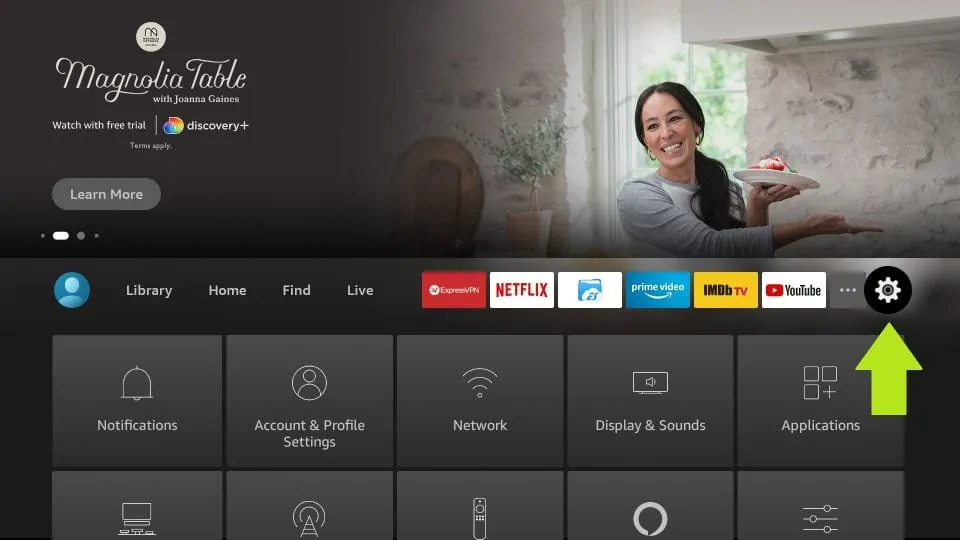
4- Revenez à l’écran d’accueil de FireStick après avoir installé l’application Downloader.
Dans la barre de menu, cliquez sur « Paramètres ».
5. Dans les Paramètres, choisissez l’option « Ma Fire TV ».
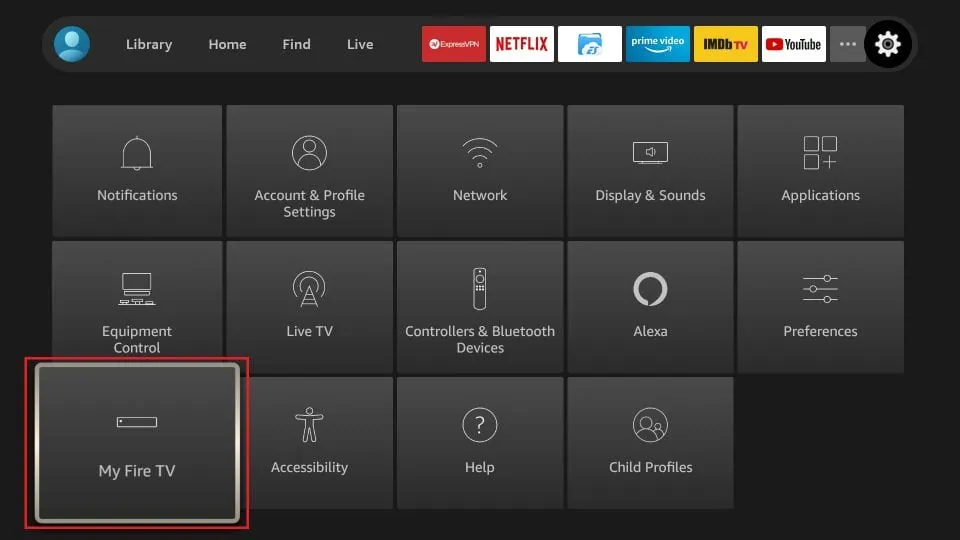
6. Lorsque les options suivantes s’affichent sur l’écran suivant, cliquez sur « Options pour les développeurs ».
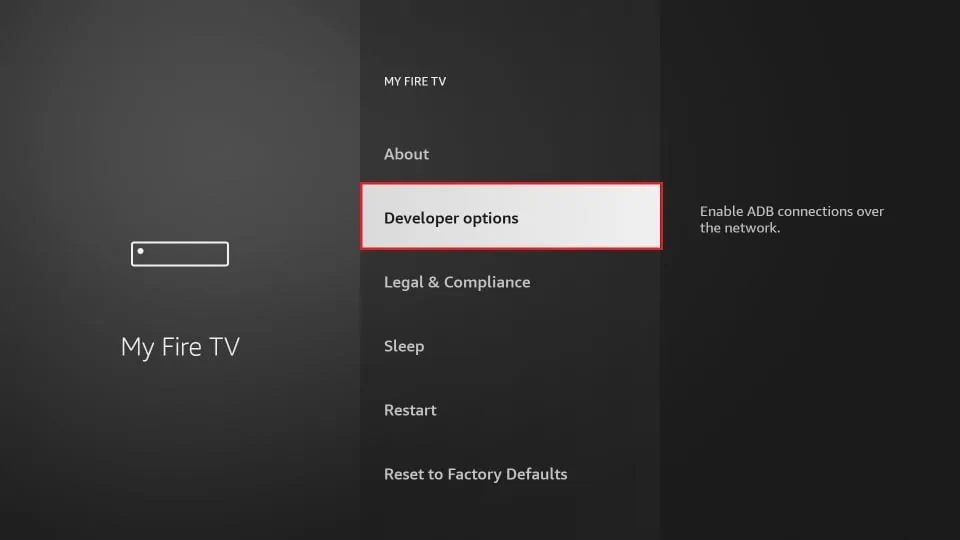
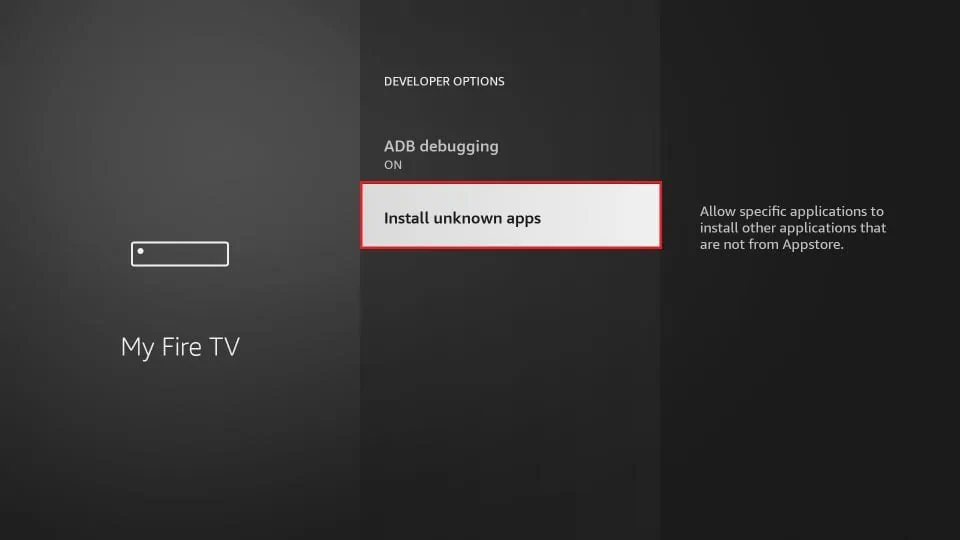
7. Cliquez sur « Installer à partir d’applications inconnues ».
8.Cliquez sur « Downloader » pour modifier le statut. Activé
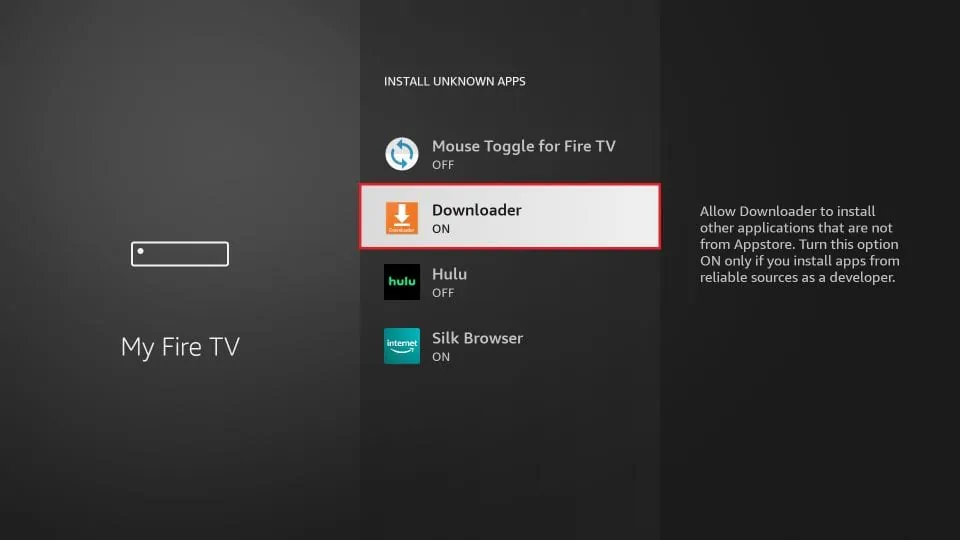
Voici les paramètres de votre FireStick pour autoriser l’installation d’IPTV Smarters et d’autres applications tierces. Suivez les étapes ci-dessous :
9. Vous pouvez maintenant ouvrir l’application Downloader.
Lorsque vous exécutez cette application pour la première fois, des invites s’affichent. Ignorez-les jusqu’à ce que l’écran suivant s’affiche.
Sur cet écran, cliquez sur la zone de texte URL à droite (assurez-vous que l’option Accueil du menu de gauche est sélectionnée) où il est indiqué « http:// ».
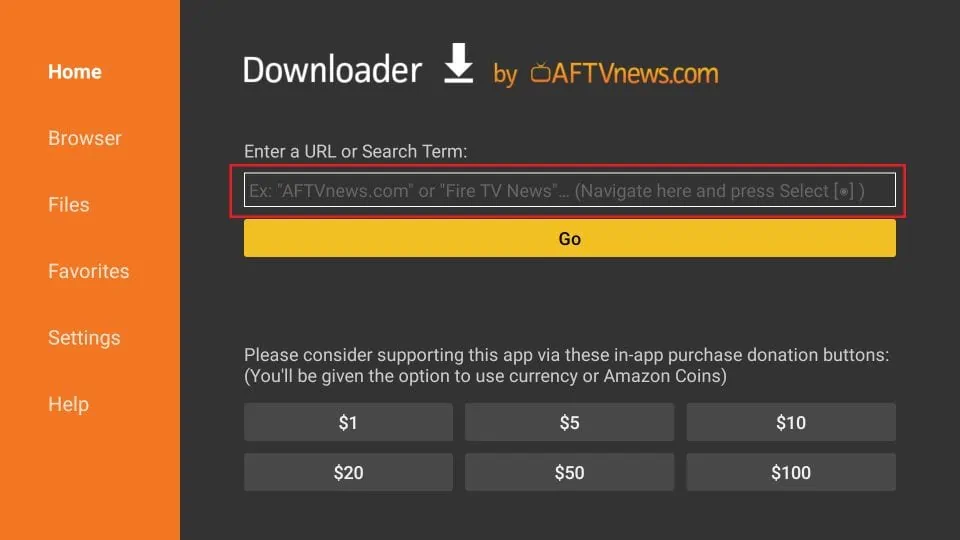
10.Saisissez le chemin d’accès suivant dans cette fenêtre : https://www.iptvsmarters.com/smarters.apk
Cliquez sur « OK ».
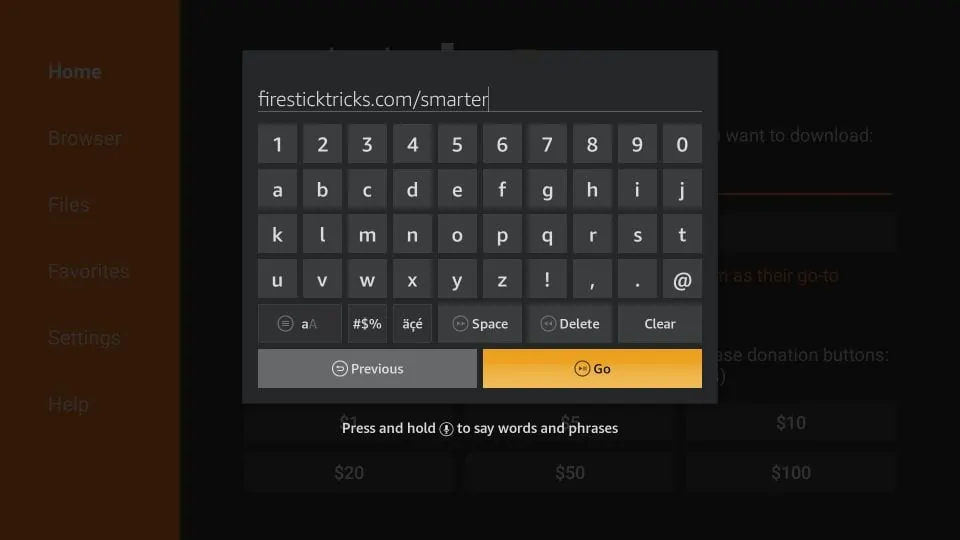
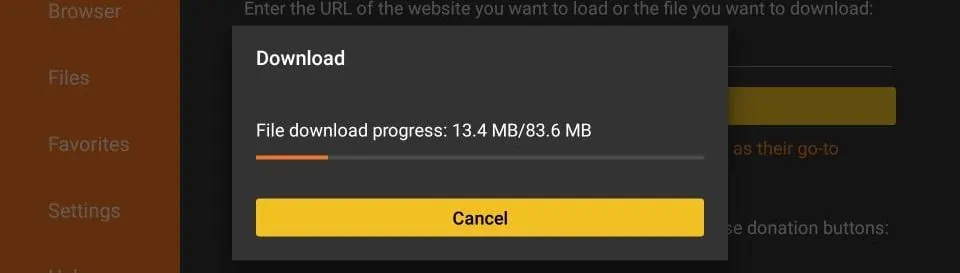
11. Attendez une minute ou deux que l’IPTV Smarter soit téléchargé sur votre FireStick.
12.
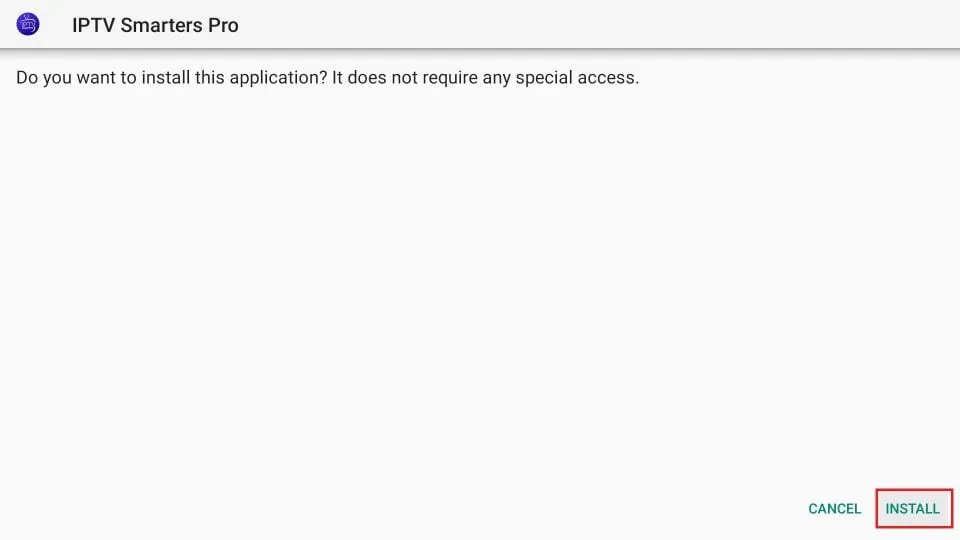
Une fois le téléchargement terminé, l’application de téléchargement exécutera le fichier APK et l’installation commencera.
Cliquez sur « Installer ».
13. Patientez jusqu’à la fin de l’installation.
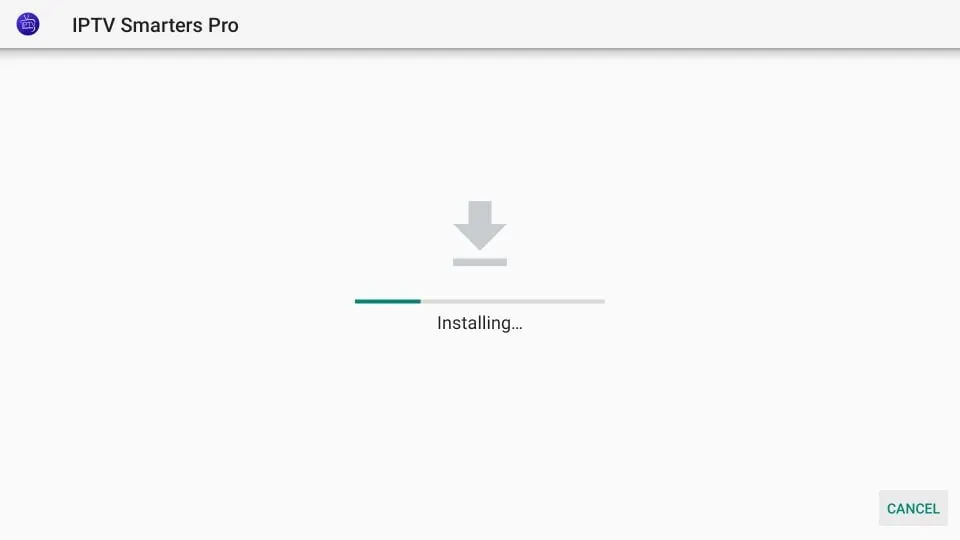
14.
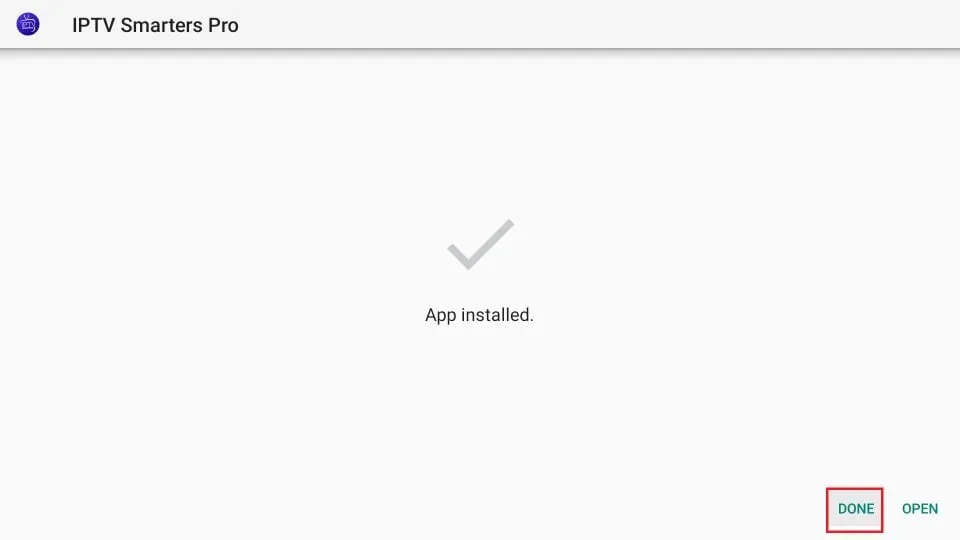
L’installation se termine par la notification d’installation de l’application.
Vous pouvez maintenant cliquer sur « OUVRIR » et commencer à utiliser IPTV Smarters.
Je vous recommande de cliquer sur « TERMINÉ » afin de supprimer d’abord le fichier APK et de libérer de l’espace sur le FireStick.
15.
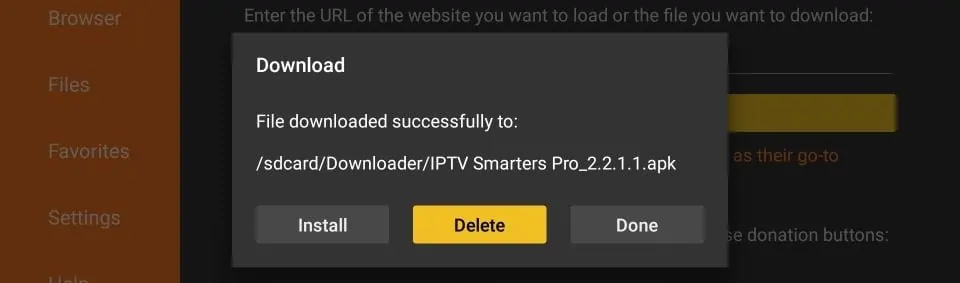
Si vous avez cliqué sur « TERMINÉ » ci-dessus, vous Vous serez de retour sur l’interface de téléchargement.
Cliquez sur Supprimer.
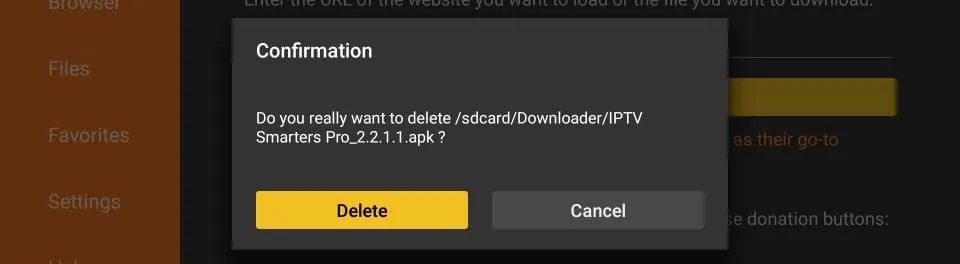
16. Cliquez à nouveau sur Supprimer.
Super ! Vous avez maintenant l’application IPTV Smarters sur FireStick.
Parcourez les trois parties ci-dessous pour obtenir TiviMate sur FireStick.
Partie 1 : Obtenez le téléchargeur sur FireStick
- Ouvrez l’écran d’accueil du FireStick.
- Allez dans le menu Rechercher.
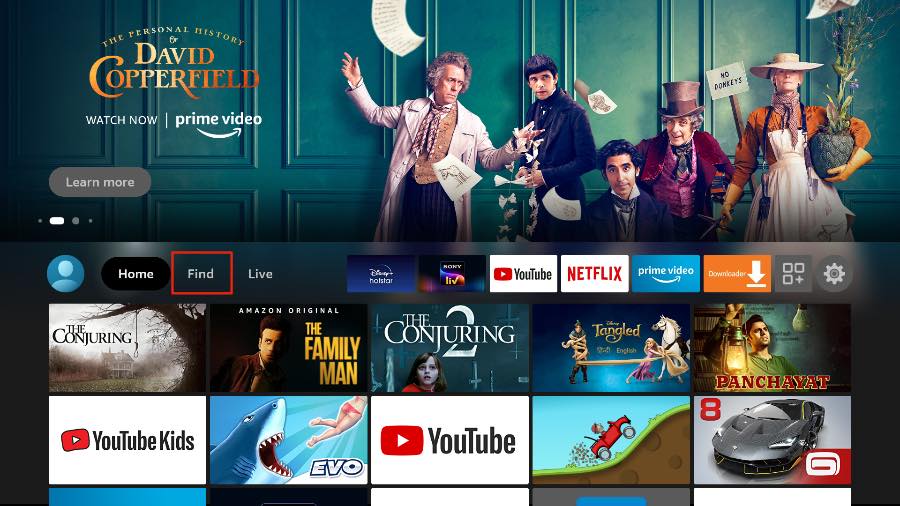
- Sélectionnez Rechercher en haut.
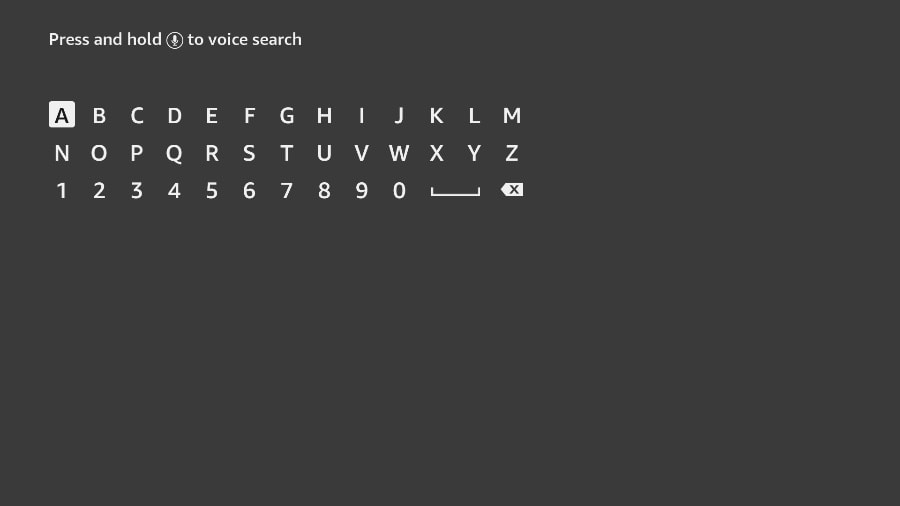
- Il ouvrira un clavier virtuel sur votre FireStick.
- Commencez à taper Téléchargeur. Sélectionnez Téléchargeur lorsqu’il apparaît parmi les suggestions sous le clavier.
- Sélectionnez l’ application Downloader, que vous pouvez reconnaître à son fond orange. Ensuite, sur l’écran suivant, sélectionnez le bouton Obtenir ou Télécharger.
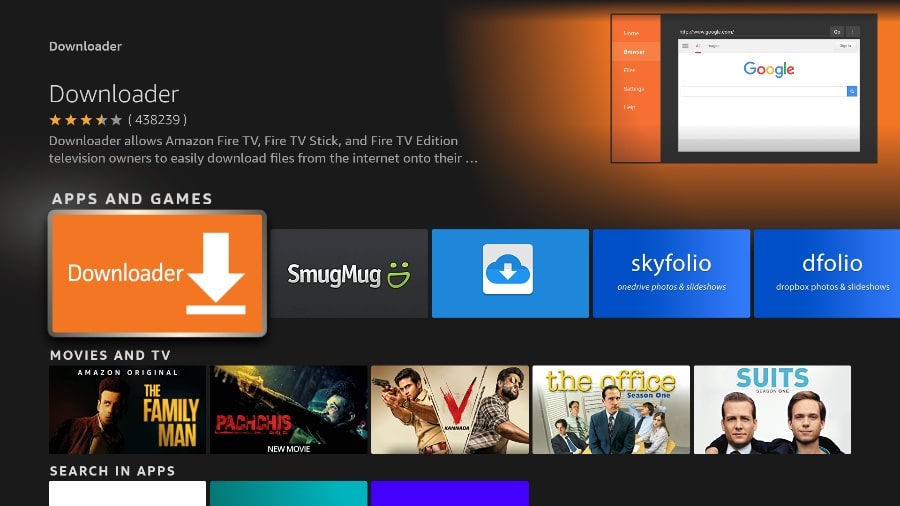
L’installation de l’application Downloader sur votre FireStick ne prendra qu’une minute. Avant d’ouvrir l’application Downloader pour installer TiviMate APK, vous devez apporter des modifications dans le menu des paramètres FireStick. Sinon, vous recevrez des erreurs lors de l’installation.
Partie 2 : Modifier les paramètres du FireStick
- Appuyez sur le bouton d’accueil de votre télécommande FireStick.
- Allez dans les paramètres de l’engrenage à l’extrême droite.
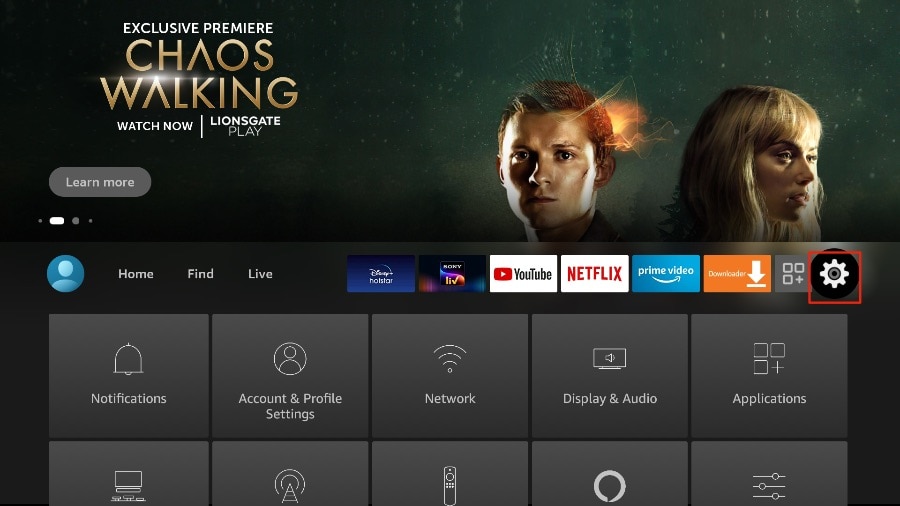
- Faites défiler vers le bas et sélectionnez My Fire TV.
Erreur! Nom de fichier non spécifié.
- Choisissez les options du développeur.
Erreur! Nom de fichier non spécifié.
- Trouvez des applications de sources inconnues. Par défaut, il est désactivé. Sélectionnez-le pour l’activer.
Erreur! Nom de fichier non spécifié.
Désormais, vous pouvez télécharger confortablement n’importe quel fichier d’installation d’application (APK) sur le FireStick sans aucun problème. Suivez les étapes ci-dessous pour installer TiviMate APK sur le FireStick à l’aide de l’application Downloader.
Partie 3 : Utiliser le téléchargeur pour installer TiviMate sur FireStick
- Allez dans le menu Applications depuis l’accueil du FireStick.
Erreur! Nom de fichier non spécifié.
- Ouvrez l’ application Downloader et sélectionnez la case Entrez une URL sur l’écran d’accueil.
Erreur! Nom de fichier non spécifié.
- Cela ouvrira un clavier virtuel. Tapez https://shorturl.at/nrBS9 et appuyez sur Go en bas.
Erreur! Nom de fichier non spécifié.
- Downloader installera le dernier TiviMate APK sur votre FireStick. C’est environ 11 Mo.
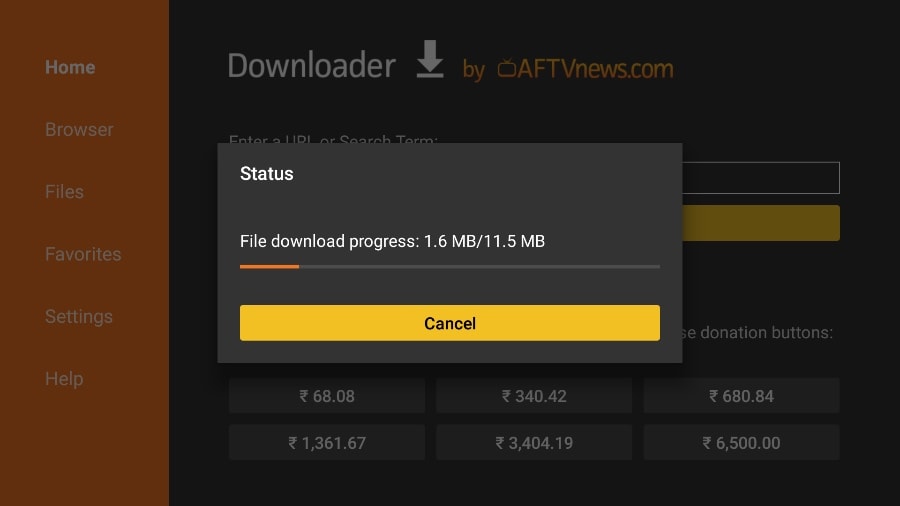
- Cliquez sur Installer lorsque vous y êtes invité.
.
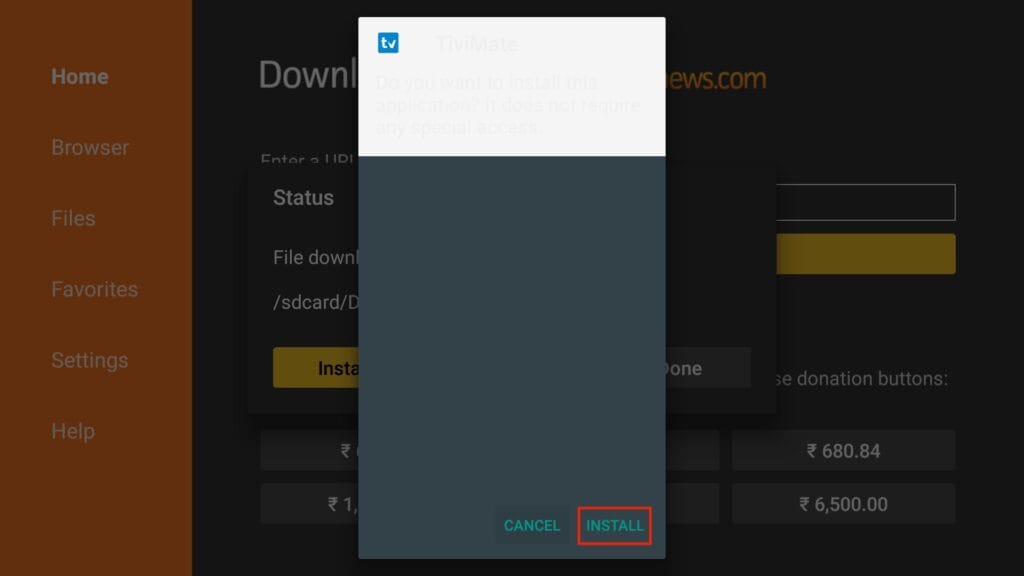
- Après l’installation, supprimez l’APK de votre appareil.
.
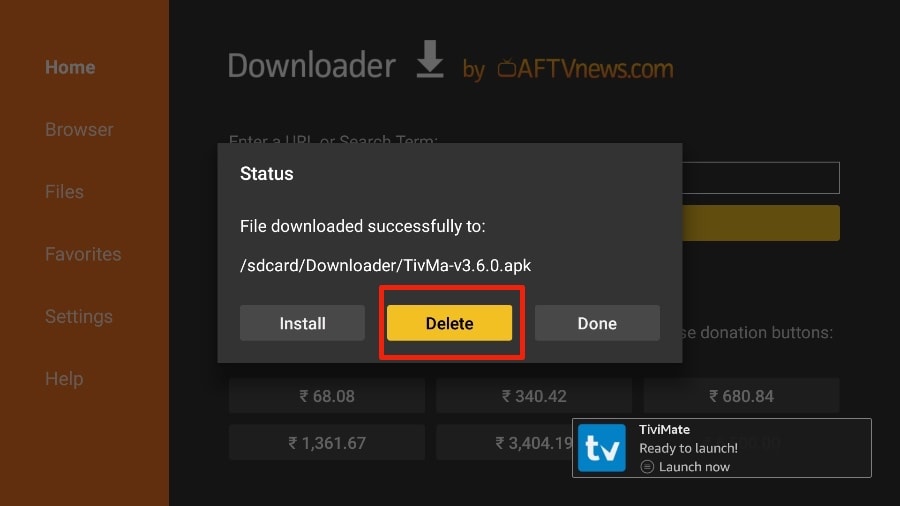
Je suggère à nos lecteurs de supprimer le fichier APK sur le FireStick car il ne sert plus à rien – nous l’avons déjà utilisé pour installer TiviMate. En général, je vous conseille de garder votre FireStick exempt de fichiers et de médias inutiles. Le manque de stockage entraînera des performances lentes dans l’ensemble de l’appareil.
Ça y est, vous avez réussi à installer l’APK TiviMate sur votre FireStick. Vous êtes maintenant prêt à profiter de centaines de chaînes en direct, de films et de séries télévisées sur le FireStick. Avant de discuter de l’application, faisons un ajustement rapide pour notre commodité.
TiviMate IPTV Player est une application addictive. Vous êtes susceptible d’utiliser l’application fréquemment. Je vous conseille de placer l’application directement sur l’écran d’accueil du FireStick pour un accès facile. Pour ce faire, suivez les étapes ci-dessous.
- Appuyez sur le bouton d’accueil de votre télécommande FireStick et maintenez-le enfoncé.
2. Sélectionnez Applications sur l’écran suivant.
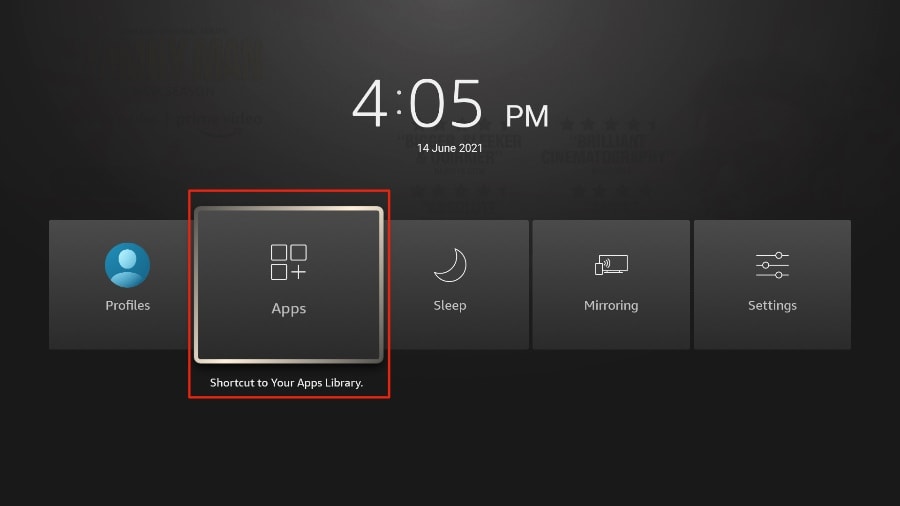
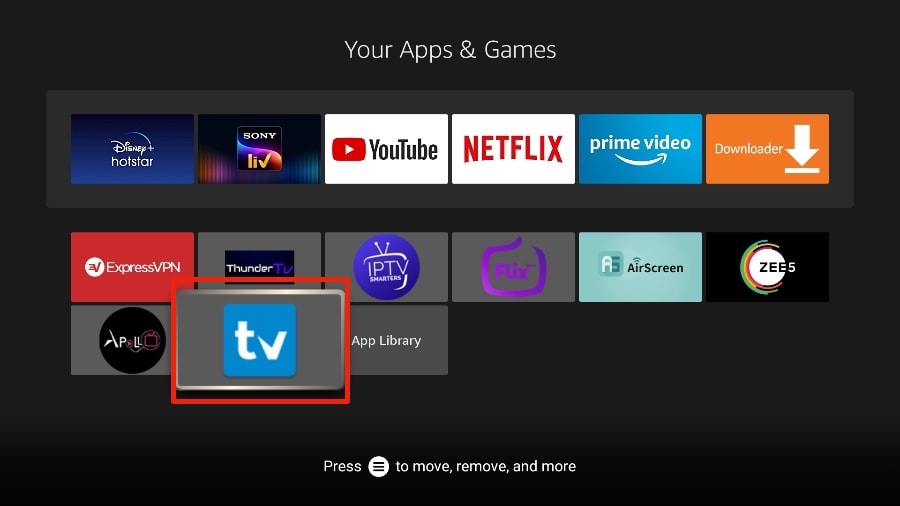
- Faites défiler jusqu’à TiviMate IPTV Player mais ne le sélectionnez pas. Au lieu de le sélectionner, appuyez sur le bouton d’options de votre télécommande FireStick.
.
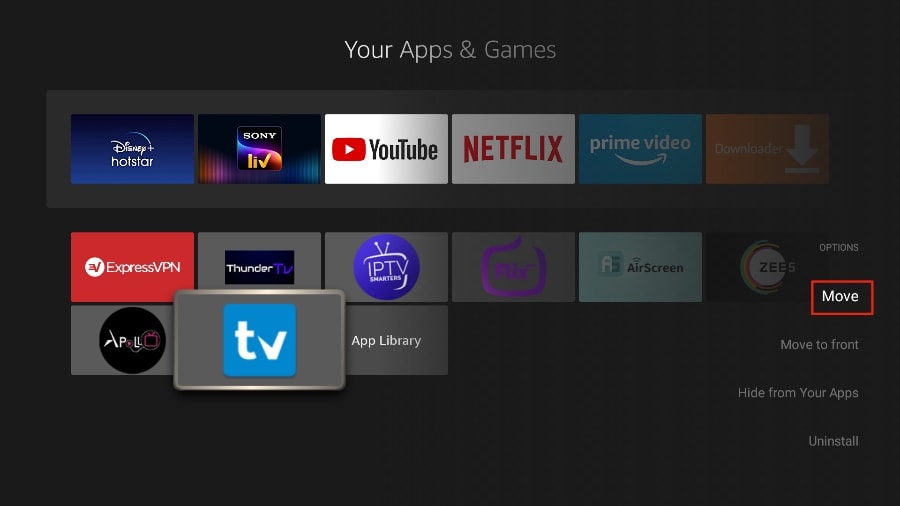
- Vous trouverez l’ option Déplacer sur le côté droit. Sélectionnez-le.
.
- Déplacez TiviMate vers la rangée supérieure, puis appuyez sur le bouton de sélection de votre télécommande pour confirmer le nouvel emplacement.
.
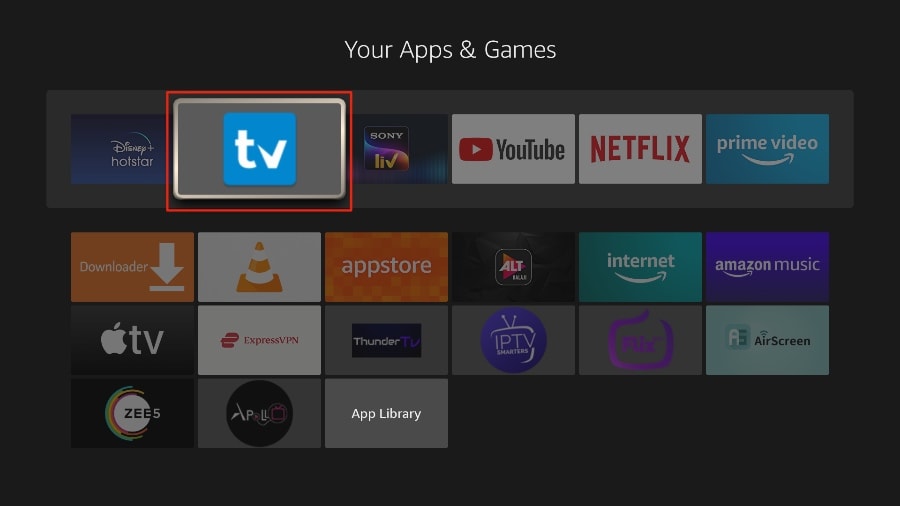
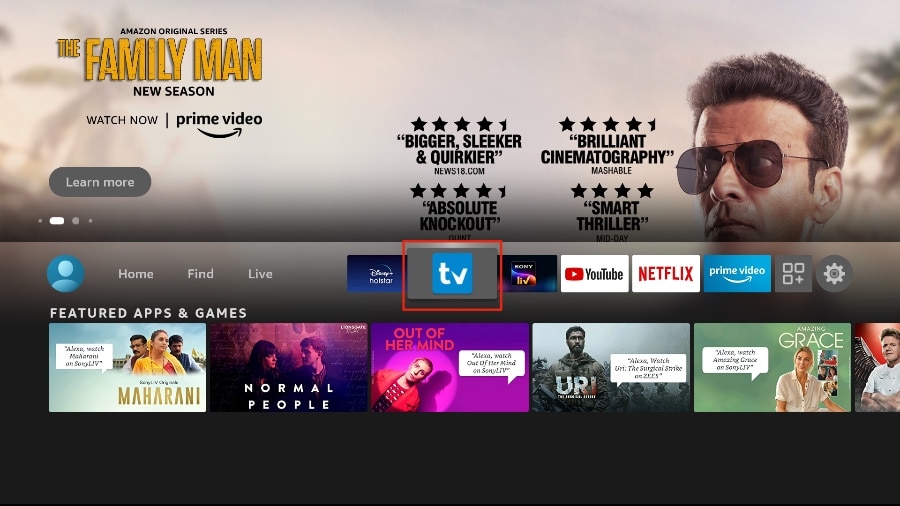
- Vous pouvez maintenant accéder confortablement à TiviMate Player depuis votre écran d’accueil FireStick. Il n’est pas nécessaire de passer par un menu à chaque fois.
.
If Smarters Pro App is not working properly we’ll use another great app which is XCIPTV Player.
1.We will first install the Downloader app
This app will help you sideload IPTV Smarter on FireStick (because browser downloads are not allowed)
You may also read our detailed guide on how to sideload apps on FireStick with Downloader
2. Click the Find > Search option on the home screen of FireStick
3. Type the name of the app (which is Downloader)
Click the Downloader option when it is displayed in the search results
Choose the Downloader icon on the following screen and download and install the app
4. Get back to the home screen of FireStick after installing the Downloader app
In the menu bar, click Settings
5. In the Settings, choose the option My Fire TV
6. When the following set of options are displayed on the next screen, click Developer Options
7. Click Install from unknown apps
8. Click Downloader to change the status to ON
With this, you have configured the FireStick settings to allow the installation of IPTV Smarters and other third-party apps. Follow the steps below:
9. You may now open the Downloader app
When you run this app for the first time, a set of prompts will appear. Dismiss them until you see the following screen
On this screen, you need to click the URL textbox on the right side (make sure Home option in the left menu is selected) where it says ‘http://’
10. Go ahead and enter the following path on this window: troypoint.com/xc
Click GO
11.Click Install.
Give it a minute or two until the IPTV Smarter is downloaded onto your FireStick device

12. Click Done.

13. Launch XCIPTV and wait a few seconds for the app to load.

14. You have successfully installed XCIPTV APK on your device.

Continue below for setting up XCIPTV on your preferred streaming device.
How to Setup XCIPTV
When first launching XCIPTV you are prompted to enter login information for your IPTV service.
As mentioned previously, this can be done through Xtreme Codes API or using an M3U URL. This information can usually be found within a confirmation email.
Enter your IPTV service login credentials and click Sign In when finished.
Click Allow.

Wait a minute or two for the media contents to load.

That’s it! You have successfully set up XCIPTV APK with your preferred IPTV service.

In your TV App Store Search for Elk Player:

After installing the app, Open the app and send us the Mac Address from the App:

After receiving your Mac Address, our support team will activate your subscription.
Then, simply refresh the app and your enjoy watching your favorite content!
N.B: The app offers a 14 days trial period only. Once you order a subscription, we’ll activate your app with no additional cost.
In case you are facing any issues, please contact our support team and they will help you set the subscription in your APP.
In your App Store Search for Elk Player:
After installing the app, Open the app and send us the Mac Address from the App:
After receiving your Mac Address, our support team will activate your subscription.
Then, simply refresh the app and your enjoy watching your favorite content!
N.B: The app offers a 14 days trial period only. Once you order a subscription, we’ll activate your app with no additional cost.
In case you are facing any issues, please contact our support team and they will help you set the subscription in your APP.
In your Google Play Store Search for Elk Player:
After installing the app, Open the app and send us the Mac Address from the App:
After receiving your Mac Address, our support team will activate your subscription.
Then, simply refresh the app and your enjoy watching your favorite content!
N.B: The app offers a 14 days trial period only. Once you order a subscription, we’ll activate your app with no additional cost.
In case you are facing any issues, please contact our support team and they will help you set the subscription in your APP.
Watch IPTV on Your Computer & Laptop
Install IPTV Smarters Pro (select Xtream codes API ) Using this link: https://www.iptvsmarters.com/IPTVSmartersPro-Setup-1.1.1.exe
Login using your credentials from your order email.
Choose a Channel and enjoy the show
This tutorial will guide you through the simple setup instruction for STB Emulator.
‘STB Emulator’ can emulate the following IPTV set-top boxes.
IPTV Set-top Box | Support |
MAG 200 | Yes |
MAG 245 | Yes |
MAG 250 | Yes |
MAG 260 | Yes |
MAG 270 | Yes |
MAG 275 | Yes |
Aura HD | Yes |
- STB Emulator Setup Instructions:
- Download ‘STB Emulator’ from the Google Play Store here.
- Install and Load the ‘STB Emulator’ app and you will see your ‘MAC address’ on screen.
- Tap near the ‘Top right corner’ and then click ‘Settings’ – the 4th icon from the right.
- Tap ‘Profiles’.
- Tap ‘Test portal’ to modify the existing profile or ‘Add profile’ to start a new one.
- Tap ‘STB Model’.
- Tap ‘MAG 250’ or whichever STB you wish to emulate.
- Tap ‘Portal settings’.
- Enter your ‘Portal URL’ (Check your activation e-mail) and click OK.
- Now tap ‘Screen Resolution’.
- Choose ‘1280×720’ (You can choose higher with internet speed 16+ Mbps).
- Exit the app and restart.
- You will now see your channel list.
Troubleshooting STB Emulator
If you have any problems viewing the Channels please follow this recommended fix:
Restart your App, Device/Box, and Wi-Fi Router.
In case you are facing any issues, please contact our support team on WhatsApp and they will help you set the subscription in your APP.
Connect MAG DEVICE to TV and Internet. Then do as follows
- Go to: Settings—> System Settings —> Servers—>Portals
- Set Portal 1: Host Up
- Set Portal 1 URL ( see your E-mail )
- Set Portal 2 Name leave this empty add this only If you order the second subscription
- Set Portal 2 URL leave this empty add this only If you order the second subscription
- Save everything
- Reboot device
- After the box is restarted, wait until the TV load
- A screen shows the channels will appear.
In case you are facing any issues, please contact our support team on WhatsApp and they will help you set the subscription in your APP.
How to Install IPTV on Roku With a Simple Trick
This tutorial provides step-by-step instructions to install IPTV on Roku. Using a Roku device, we must “sideload” IPTV on the Roku device. The instructions below will require the use of a computer in order to download the IPTV app file and add it to your Roku streaming device.
If you are using another IPTV player such as TiviMate, you can also watch IPTV on Roku by casting to your Roku device. IPTV Smarters is one of the best IPTV Players, compatible with hundreds of IPTV services that use a server URL.
Anyways, let’s get into how to install IPTV on Roku. I divided the instructions into four parts to make them easier to follow:
- Part 1: Enabling developer options on Roku
- Part 2: Adding the IPTV Smarters channel
- Part 3: Downloading the IPTV Smarters package on your computer
- Part 4: Installing IPTV Smarters on Roku
Don’t worry, the process is easier than it sounds. Let’s begin.
Enable Developer Options on Roku
1. Launch your Roku by switching to its HDMI input on your television.
2. Grab your Roku remote and press the following buttons in this order: Home Button x3, Up Arrow x2, Right Arrow x1, Left Arrow x1, Right Arrow x1, Left Arrow x1, Right Arrow x1.
3. If done correctly, the developer options menu will appear on your Roku TV screen.
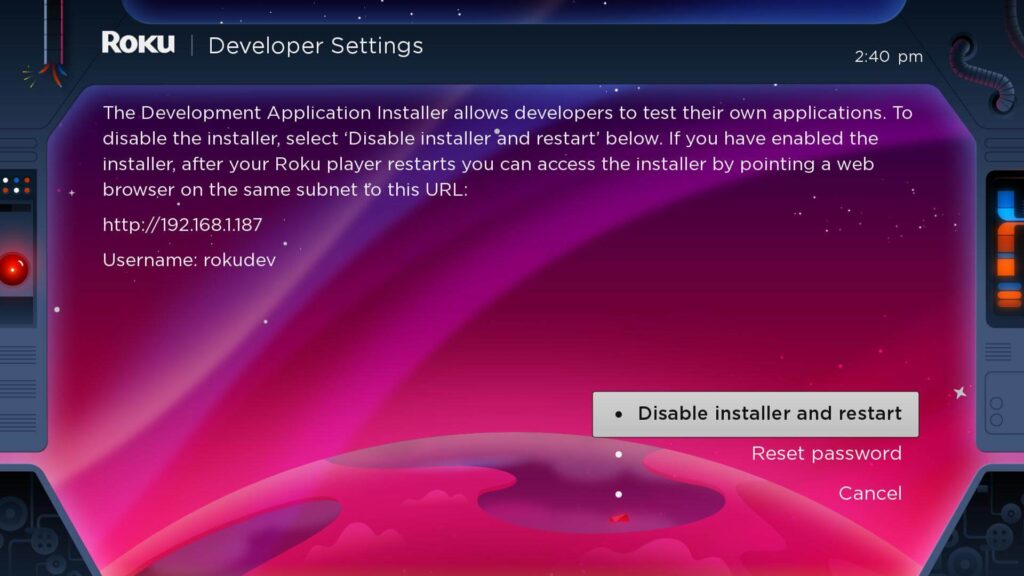
4. Write down the IP address listed on the screen.
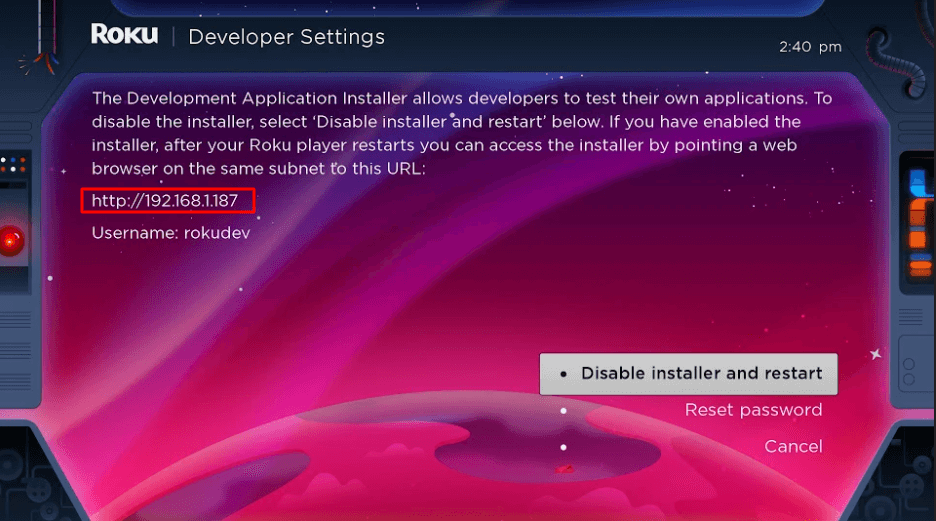
5. Select Enable installer and restart (mine says Disable because I’ve already done this).
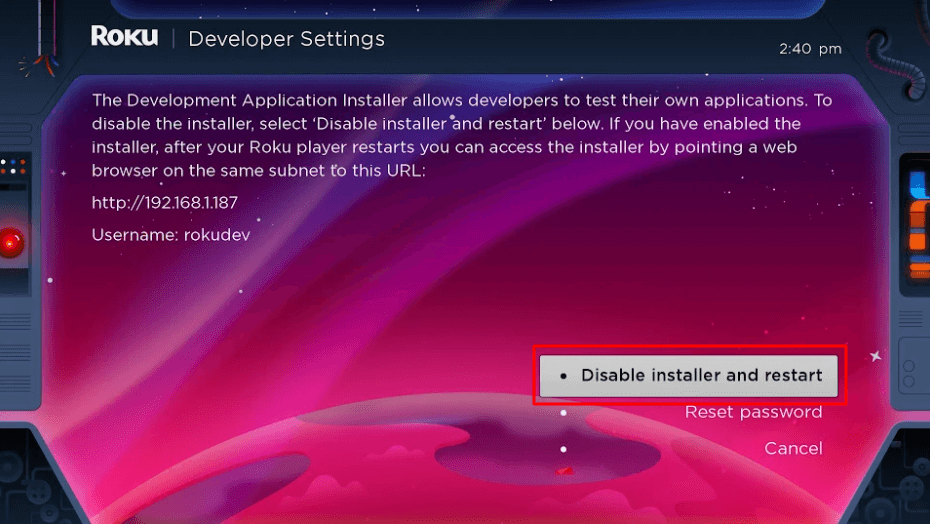
6. Scroll through the Developer Tools License Agreement and select I Agree.
7. Create a webserver password using the keyboard that appears. You will need your webserver password for a later step.
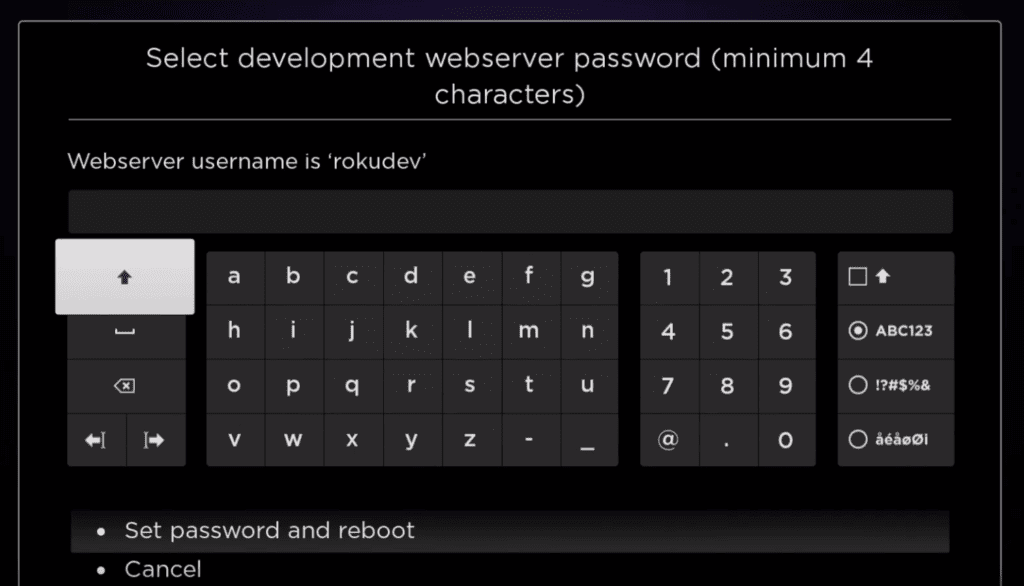
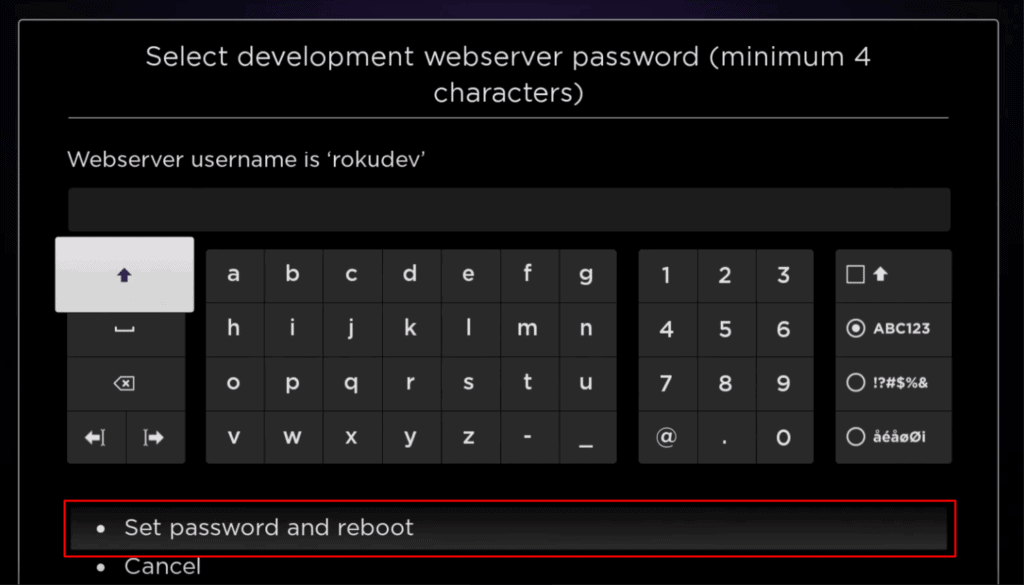
8. Select Set password and reboot.
Part 2: Add IPTV Smarters Channel
1. Head to your computer and navigate to my.roku.com using any browser.
2. Type in your username and password for your Roku account, and click Submit.
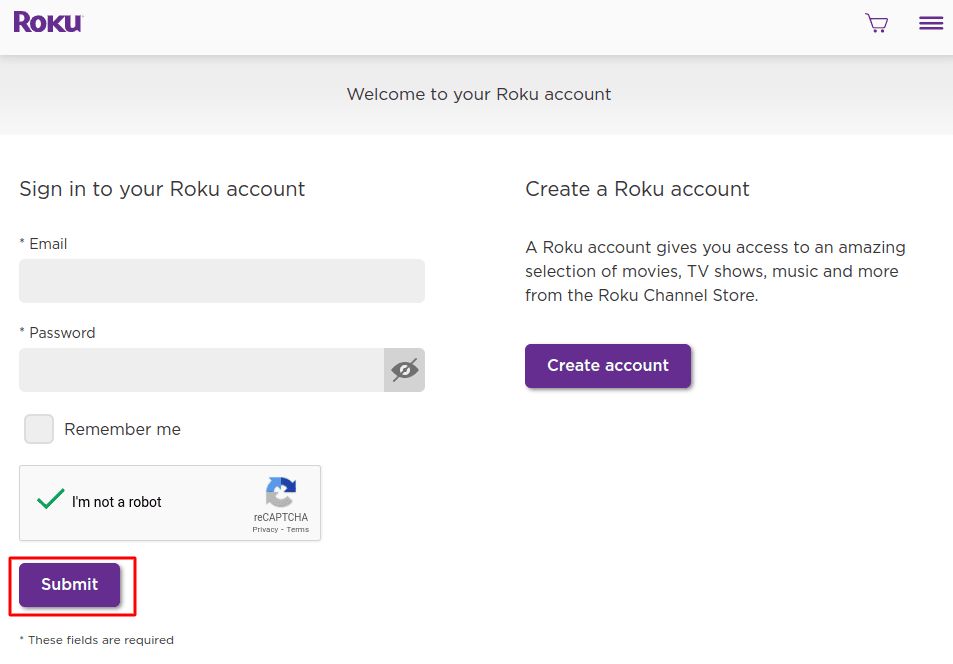
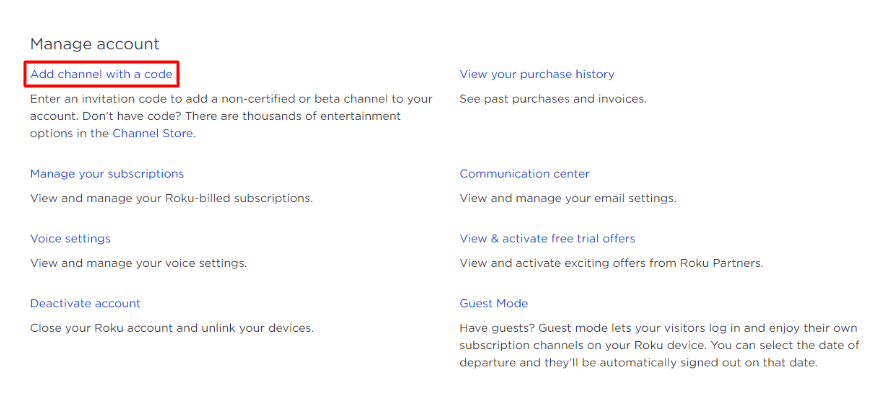
3. Once logged in, select Add channel with a code, under Manage account.
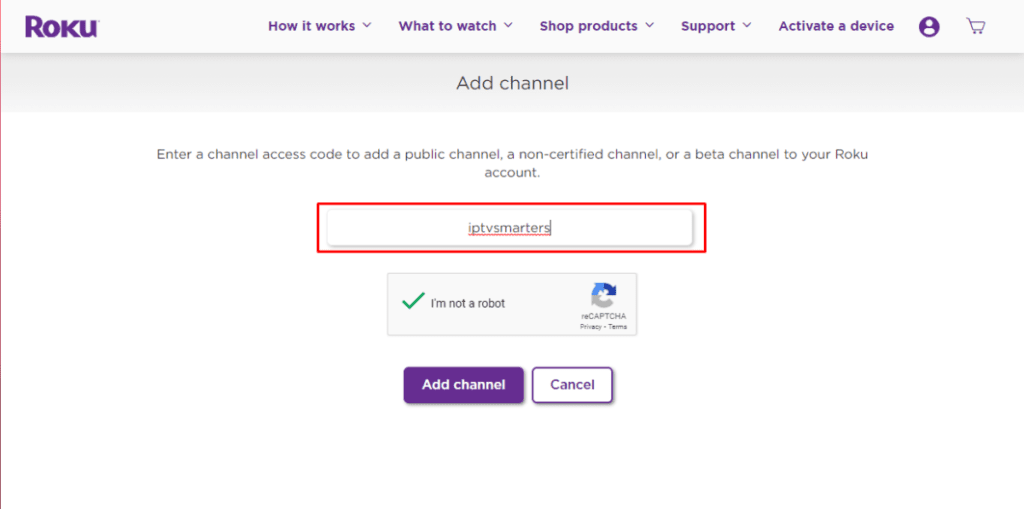
4. Type iptvsmarters into the box. Make sure you’ve typed it exactly as shown.
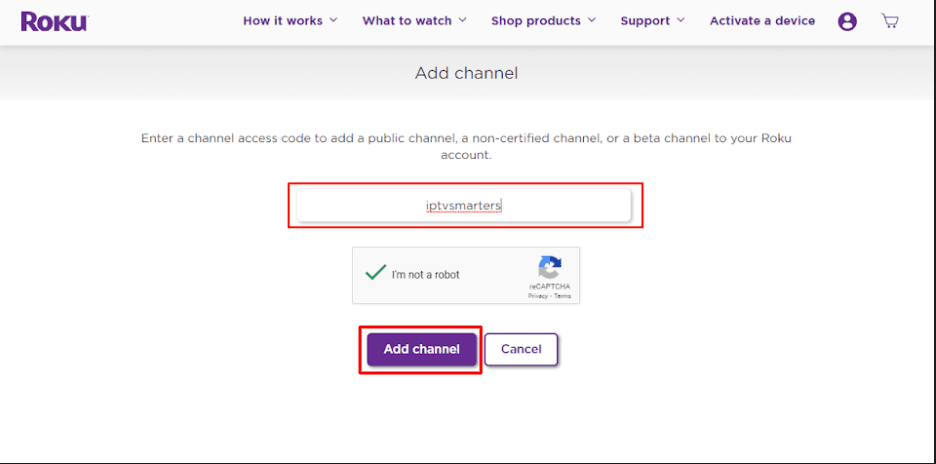
5. Select Add Channel to add it to your Roku.
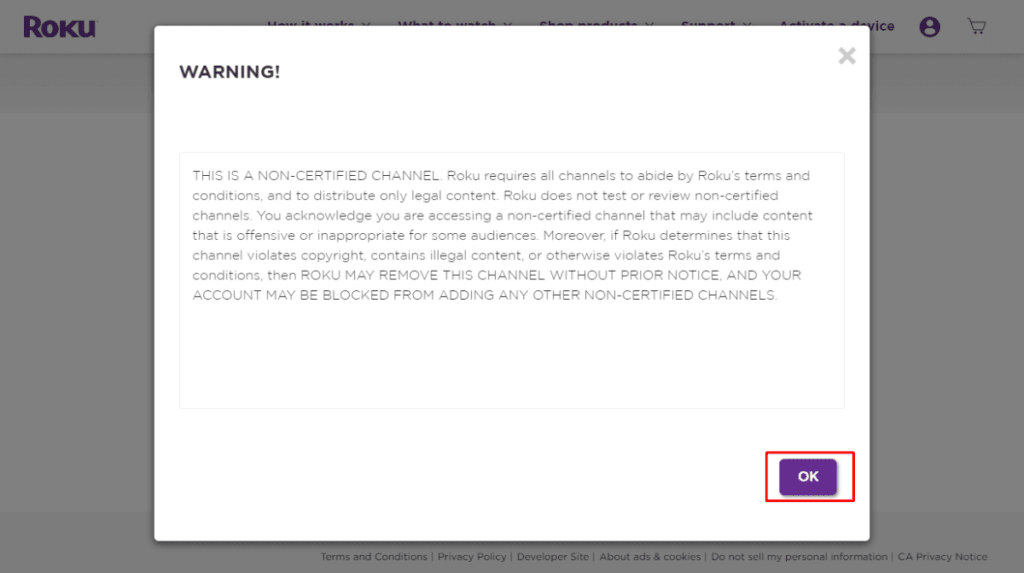
6. Click OK on the warning message that appears.
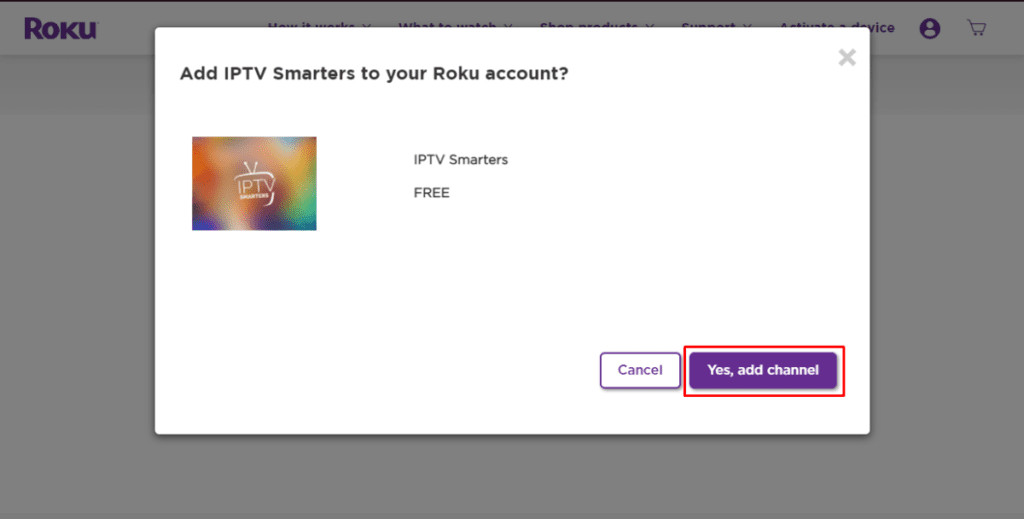
7. Select Yes, add channel on the following popup.
Part 3: Download IPTV Smarters Package on Your Computer
Now, it’s time to download the IPTV Smarters file onto your computer.
1. Head to this link on your computer and the download should start automatically: https://www.whmcssmarters.com/clients/dl.php?type=d&id=108
Note: FireStickTricks.com doesn’t host or distribute this APK. The link leads to the site where it’s hosted.
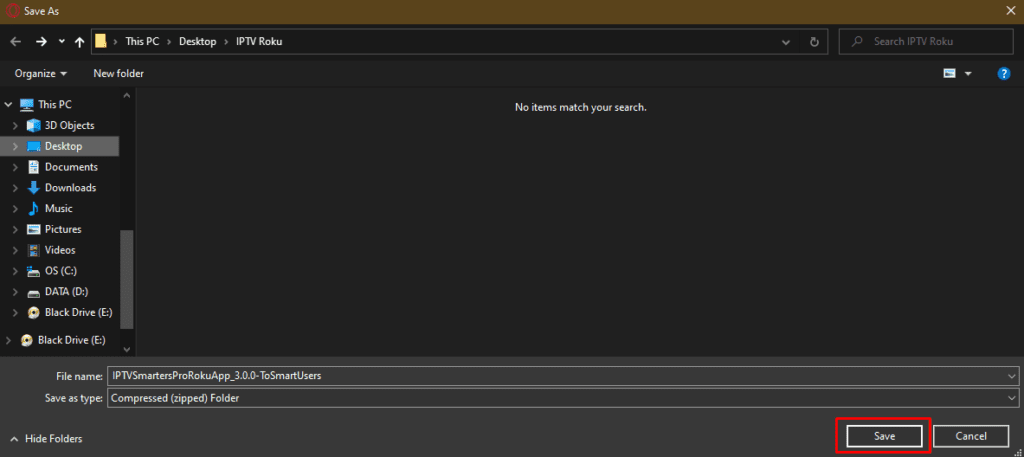
2. Save the IPTV Smarters package somewhere accessible on your computer (you’ll need to browse to this location in a moment). I’m going to save it on my Desktop.
Part 4: Install IPTV Smarters on Roku
1. On your computer, open any browser. In the address bar, enter the IP address from your Roku that you wrote down earlier.
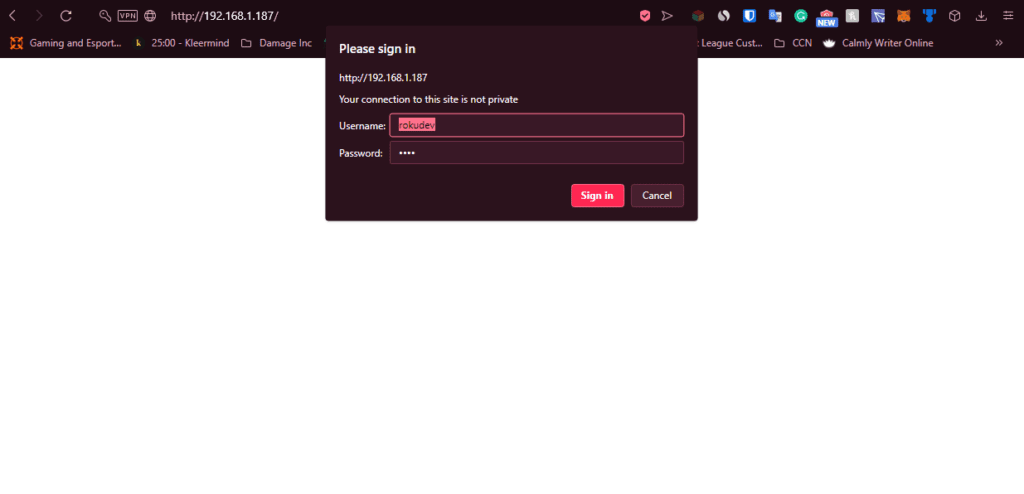
2. A sign-in box will appear. Type rokudev as the Username. For the Password, type in the webserver password you created earlier. Finally, click Sign in.
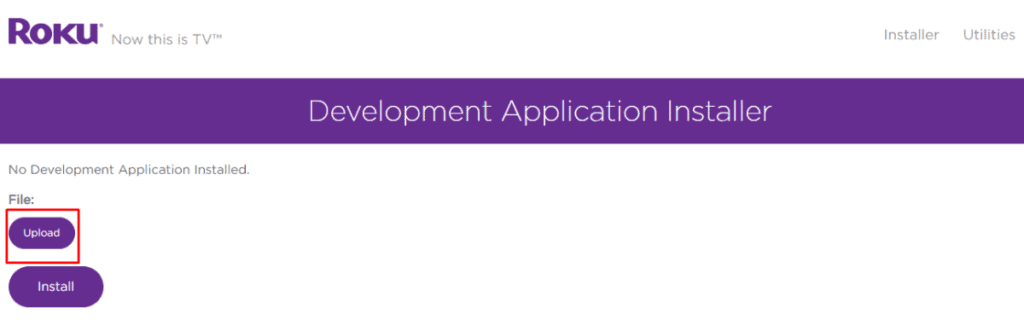
3. Click Upload on the next page.
4. Browse to the location where you downloaded the IPTV Smarters package (mine was my Desktop). Select the downloaded folder and click Open.
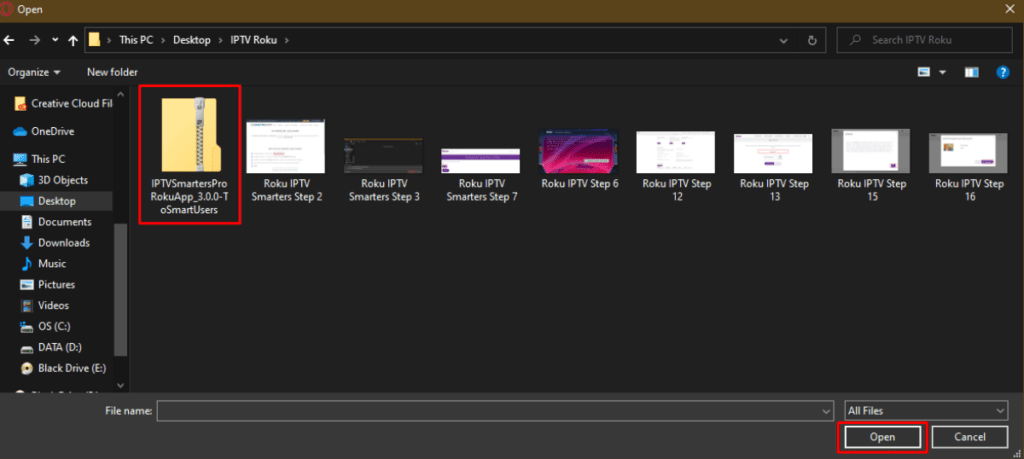
5. Click Install once the file is uploaded.
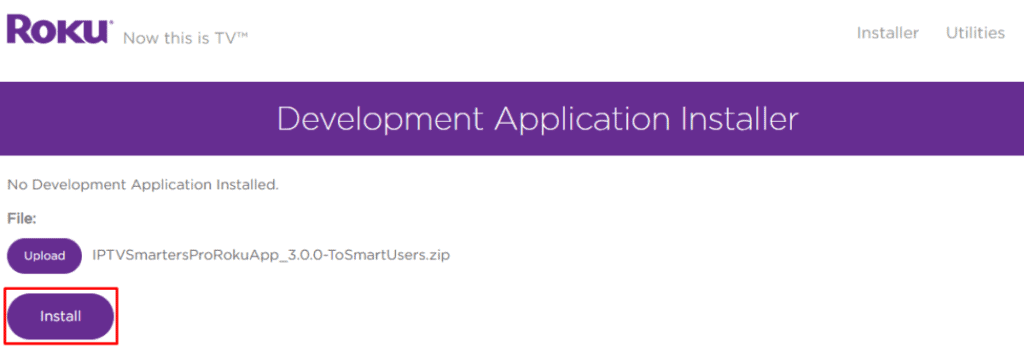
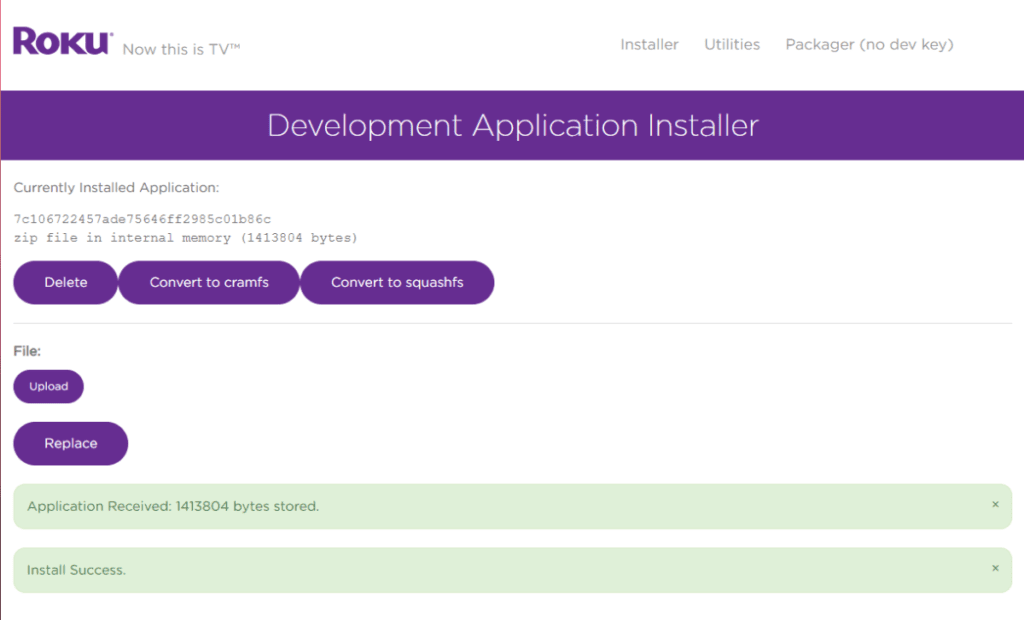
6. If you see this screen, you’ve done it correctly!
7. Head back to your Roku device, and IPTV Smarters will be on the television.
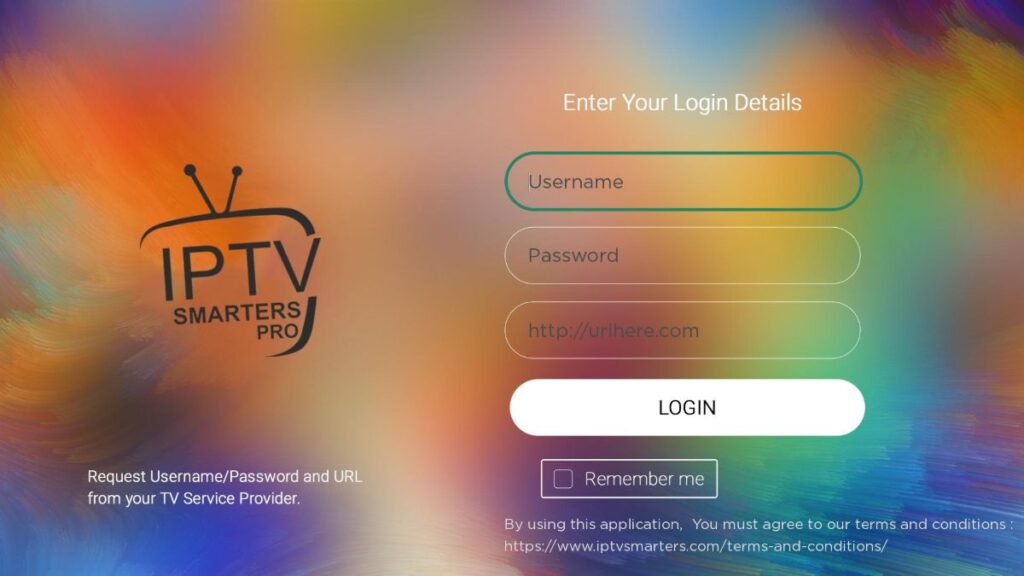
8. Simply log in with your IPTV Smarters information and you’re in!
Steps to Watch IPTV on Roku Through Screen Mirroring
To stream IPTV on your Roku-connected TV using screen mirroring, you need to install IPTV Smarters or Smart IPTV (a different IPTV player) on your smartphone. Once you have one of these two players, you can use the cast or mirror option on your device.
With the cast/mirror option, you can access content on your Roku TV from any device on the same Wi-Fi network that’s using the IPTV player app.
Install IPTV on Sony Smart TV Using Play Store
Initially, Sony Smart TV had the Android TV OS, and they have shifted to the Google TV OS recently. Both TV OS has Google Play Store for installing the streaming apps, and thereby installation procedure is also the same.
1. Turn on your Sony Smart TV and go to the Apps section.
2. Select Play Store and enter the name of the IPTV on the search bar.

3. Choose the ELK Player app from the search results and select Install.
4. Wait for the installation to be done, and open the IPTV app.
5. After installing the app, Open the app and send us the Mac Address from the App.
6.After receiving your Mac Address, our support team will activate your subscription.
7. Start streaming the content on your Smart TV.
Install IPTV on Sony Smart TV Using Downloader
Most of the IPTV apps are unavailable in the Google Play Store, then you can install the app using the Downloader app.
1. Launch your Smart TV and select Apps.
2. Open Play Store and click on the Search bar.
3. Search for Downloader and choose the app from the suggestion list.
4. Click Install to install the Downloader app on your TV.

5. Go back to the home screen and select Settings.
6. Select Device Preferences > Security and Restrictions >Unknown sources.

7. Choose the Downloader app and turn on the toggle so that you can install apps from unknown sources.
8. Launch the Downloader app and enter the URL of the IPTV apk on the URL box.

9. Click Go, and the IPTV will be downloaded on your Smart TV. Select Install.
10. Once the installation is done, open the IPTV app and enjoy streaming the content on your Smart TV.
Install IPTV on Sony Smart TV Using USB Drive
You can also get the Apk file on your PC and transfer the file to the Smart TV using USB Drive for installation.
1. Switch on your PC and select the browser.
2. Type the name of the IPTV along with an apk at last, on the search bar. For ex: Smart IPTV apk
3. Download the IPTV apk file from a trusted website.
4. Connect a USB Drive on your PC and move the IPTV apk file to the drive.
5. Disconnect the USB from the PC and connect it to the USB port on the Smart TV.

6. On your Smart TV, go to Settings and select Device Preferences.
7. Select Security & Restrictions. Click on Unknown sources and enable it.

8. Now, move the IPTV apk file on your Smart TV and open the file.
9. Click on Install, and the IPTV app will be installed on your Smart TV.
10. Open the IPTV app and start streaming the content.
Alternate Method to Stream IPTV on Sony Smart TV
You can also stream IPTV on the Sony TV through screen mirroring. Make sure you connect the Sony Smart TV and Smartphone to the same Wi-Fi network.
1. On your Smartphone, download and install an IPTV from your Play Store. You can also install the IPTV from the browser as apk file.
2. Now, go to the Notification bar and select Cast.

3. Select your Smart TV from the list of available devices.
4. On your Sony Smart TV, select Allow when asked for permission.
5. The contents on your screen will be cast to the Sony Smart TV.
6. Launch the IPTV app and enjoy streaming the content.